
Solve Employee Time Tracking
Simplify Office Admin
Reamda Ltd.
Tralee, Ireland

Senomix delivers timesheet apps to your computers, tablets and phones.
You can track project progress, approve employee hours,
or calculate billing with a few button clicks.
Stop chasing emailed spreadsheets!
Connect employees with easy time tracking software.
Automate admin time tracking chores and
save hours every week.
Senomix calculates job status and billing numbers
in moments.
Whether crunching all business hours
or examining one project team, Senomix delivers
precise results from recorded staff time.
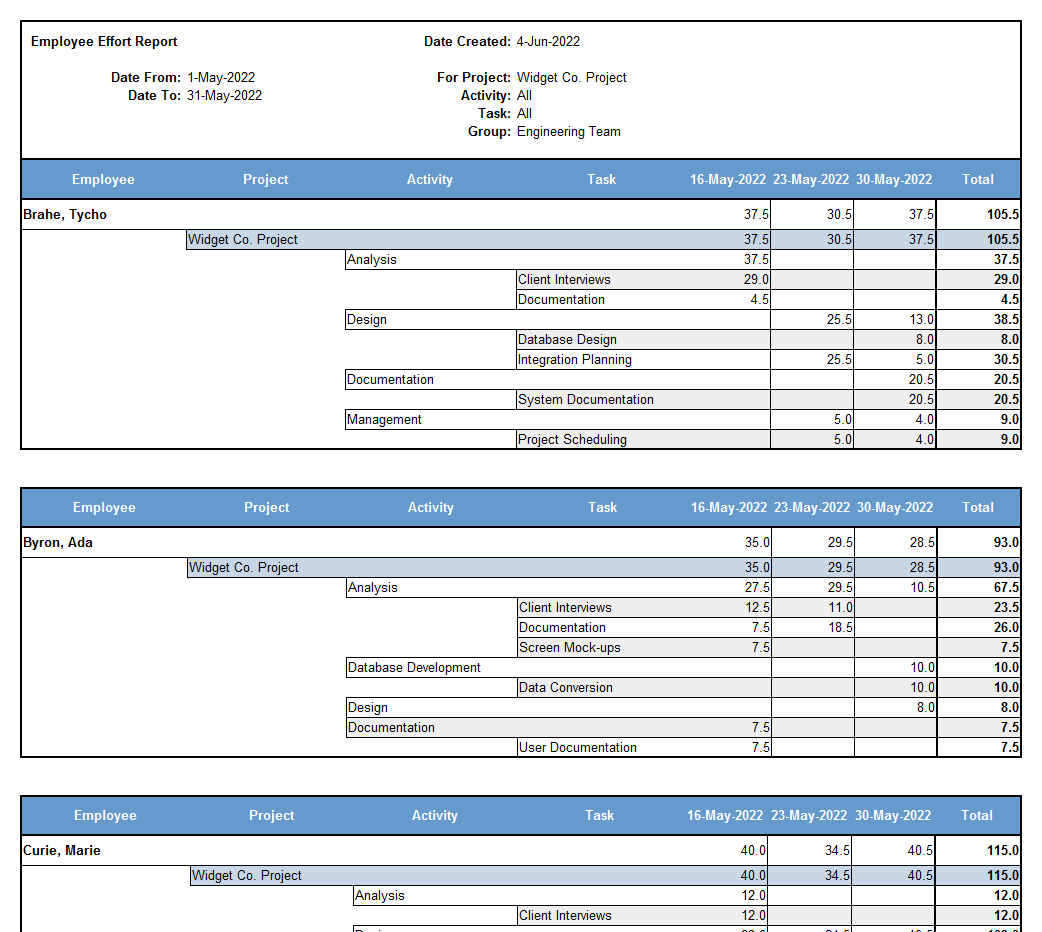
Whether your business prefers traditional HH:MM recording
or needs the precision of decimal hours timesheets,
Senomix tracks time with your work preference.

Senomix is a GDPR-compliant, privately owned Canadian corporation. We can restrict your project data communication and storage to your region of choice.
As covered in our security page, EU data isolation is available to ensure all of your system data remains within the European Union.
You can run Senomix alongside Microsoft Office, or use your time tracker as a traditional web app.
Progressive Web App (PWA) technology lets you add Senomix to your desktop in moments.
See for yourself:


Approved by Microsoft
Deploy easy time tracking trusted
by the Microsoft App Store.
Connect to QuickBooks
Senomix works with your office's accounting systems.
Connect direct to QuickBooks for effortless client billing.


Link with Xero
Connect your Xero accounts and streamline time tracking.
Trim MYOB Activity Slips
Senomix automates your MYOB time billing.
Connect direct to MYOB AccountRight
and save hours on office admin.


Simplify Odoo Timesheets
Connect your Odoo projects and ease time collection.
Use Single Sign-On (SSO) Authentication
Connect secure without an email and password
through your corporate SSO authentication dashboard.
Ready for Your Identity Provider
Sign in using OneLogin, PingIdentity, Auth0 / Okta, Google Workspace,
Microsoft Azure Active Directory (Sharepoint Azure AD / Microsoft Entra ID)
and other SAML 2.0 authentication platforms.

Enter hours in weekly timesheets
or track work with an automatic timer.
Senomix fits your work preference
for tracking billable hours.
Gain insight from staff hours with
interactive graphs.


Get answers without face-to-face meetings.
Tabulate hours without paperwork shuffles.
Collect weekly timesheets,
then check project status in MS Excel.

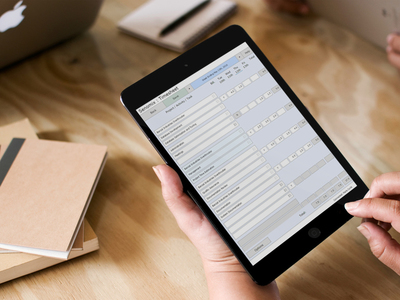
with many report functions
I like the range of functionality in the types of reports I can run.
I can look deeply into a specific employee's time, a project,
or even a project task.
Community Relations Manager
Public Relations
Have used since 2009.
Simple to set up and use.
Occasionally had questions which were attended to very quickly.
Architect
Architecture & Planning
(1-10 employees)
Integration with our current workflow
was simple.
Makes time tracking
accessible for our staff.
Lisa E.
Project Manager
Research Clinic
(10,001+ employees)
Easy to use and edit.
I like that I can easily go in and edit.
Registered Nurse
Hospital & Health Care
(10,001+ employees)
Makes it easy to record time in an easy to view manner, separating per customer.
Senior Application Support Engineer
Computer Software
(201-500 employees)
I like that the system is very user friendly.
It's very well organized.
Research Assistant
Medical Center
(10,001+ employees)
I work across multiple research studies, so it can be hard
to remember and track how many hours
I dedicate in a week to each project.
Senomix makes it is easy for me to adjust my hours accordingly.
It is very user friendly!
I really like that I can create a template of the different
projects I work on and have it set to my default.
That way, each week I don't have to re-type in
all of the project codes.
Overall, I have had a pleasant experience with Senomix Timesheets.
I highly recommend it!
Emma F.
Research Coordinator
Hospital & Health Care
(10,001+ employees)
- ✔ Lower admin costs
- ✔ Spot project bottlenecks
- ✔ Calculate billing numbers in moments
- ✔ See which tasks consume employee time
David Lipinski CPA
Arizona, United States